


The OptimizeBuilder Page Navigator was released in January 2026 with OptimizeBuilder version 1.2.6. and works with all new pages as well as older pages. The Page Navigator gives you a way to navigate longer pages or pages with lots of elements in order to edit faster by instantly accessing any elements on your page.
Activate the Page Navigator
To activate the Page Navigator, click the compass icon in the top right of the editor.
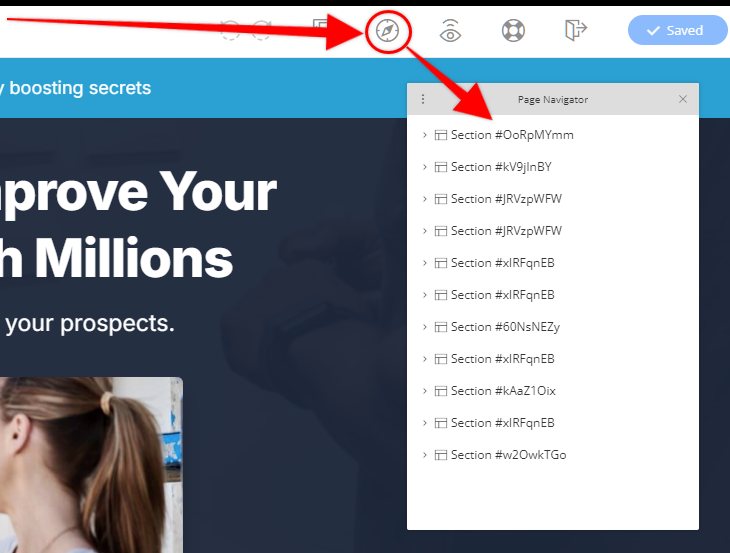
If you click to open an item such as a section, you can see what those items are. For example, here is the hero section with a headline, text, and video element.

Page Navigator Settings
To open the settings for the Page Navigator, click the 3 vertical dots on the top left corner of the navigator.
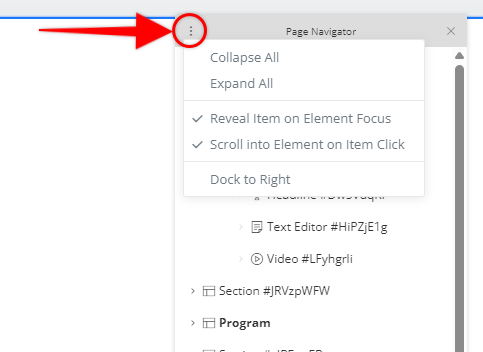
Here you'll be able to adjust the following:
- whether to expand or collapse all elements
- Open the item's toolbar (such as section, row, column, or element)
- Whether to scroll automatically to the selected item
- You can also dock the Page Navigator to the right side of the editor so it will essentially be a right sidebar. This will keep it from covering elements.
Positioning & Resizing the Page Navigator
If you hover your mouse over the top of the Page Navigator, you can hold your left mouse button down and reposition the Page Navigator anywhere on the page.
You can also click and drag the sides, and bottom to make it bigger or smaller.
Closing the Page Navigator
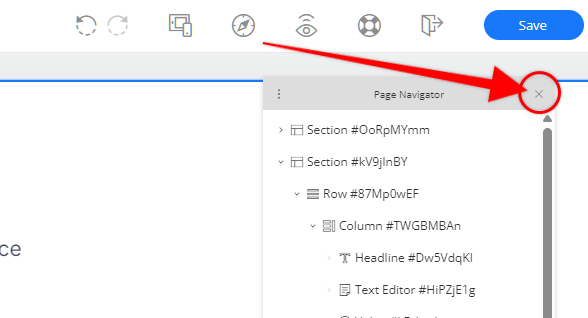
We understand that having the Page Navigator open all the time can be a distraction. You can close it by clicking the little "X" in the top right corner.
Rename items on the Page Navigator
You may rename the items in the Page Navigator by double clicking on them and typing the name. This can be very helpful, especially on longer pages such as Sales Pages or blog posts where you have a lot of sections or elements. Then it will be easy to just open the editor and jump to the element you need to edit without having to scroll and look for it.
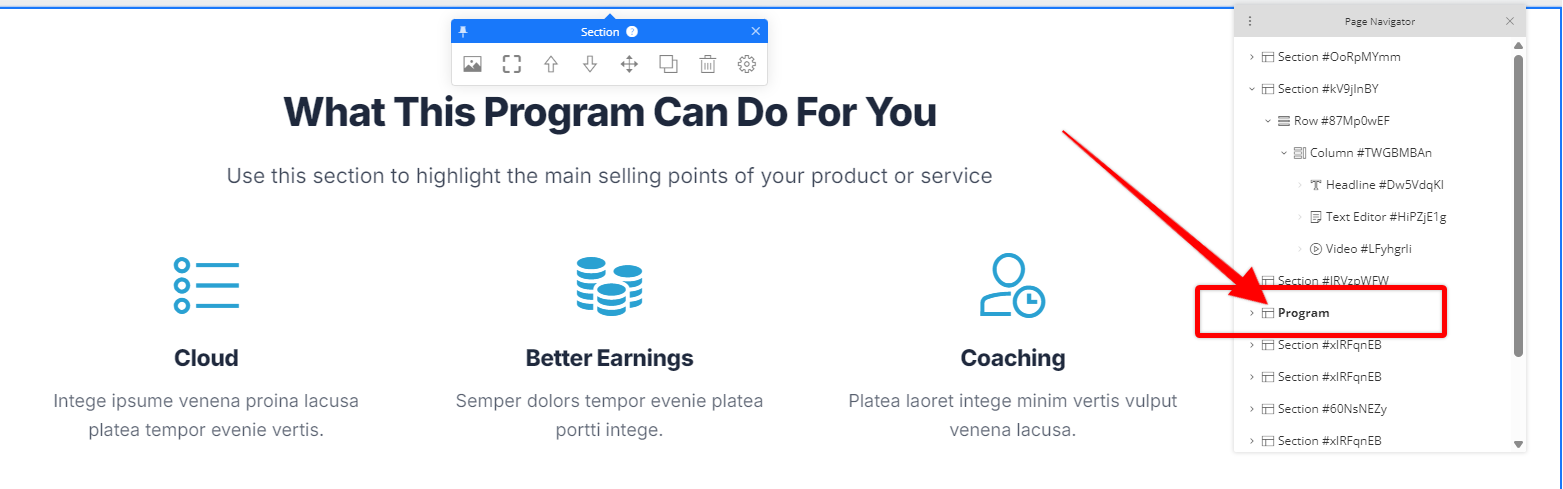
Here's the same Page Navigator after I have renamed all the Sections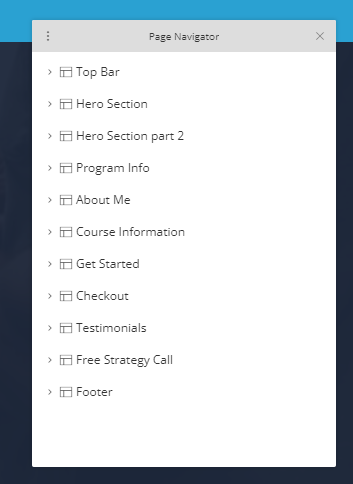
Conclusion
As you can see, the Page Navigator is a very nice addition to the OptimizeBuilder. Now you can edit your site even faster 😎🎉