There are two methods to provide the OptimizePress Support team secure access to your WordPress site.
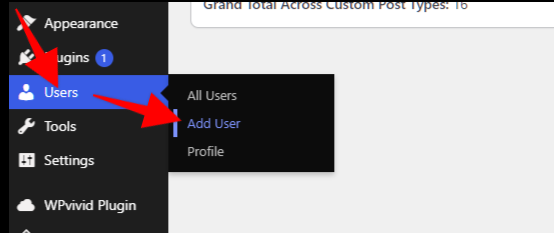
To add a temporary admin user to your site for our team to use, which can be deleted anytime you wish, just head to your WordPress Dashboard, and navigate to “Users” and click “Add User”
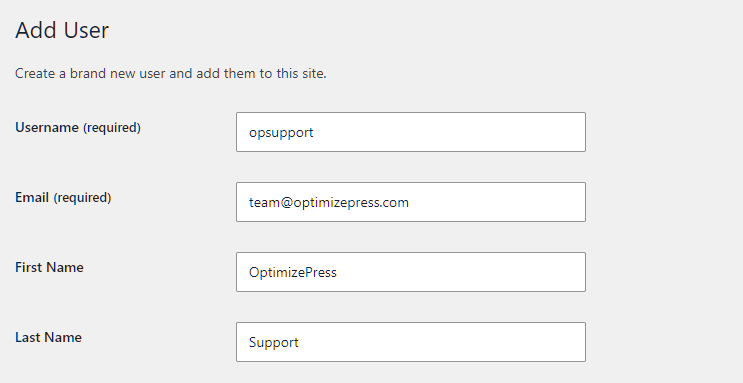
On the next screen, add our information on the Add User form:
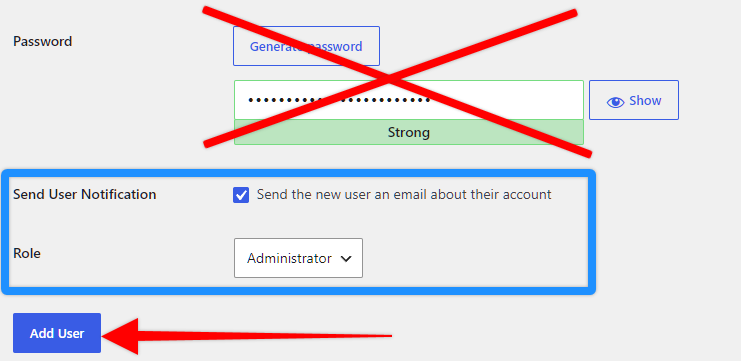
On the same Add User form, you do not need to do anything with the password field, however below that you’ll see a checkbox to “Send the new user an email about their account” - this will send us an email with a password setup link where our team can create their own password in a secure way. Make sure that box is checked.
Then click the “Add User” button.
After you click “Add User” we’ll get an email like this:
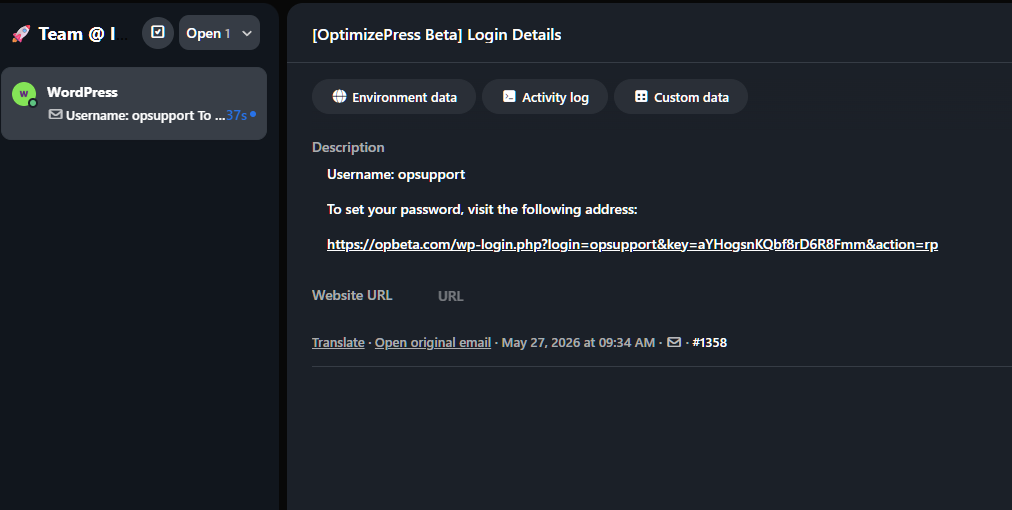
Once you confirm in your support ticket that you have done this, our team will look for the email and set up the password so we can proceed with resolving any issues you have.
As of May 2026, we now have a way for you to provide a security token to our team that will allow us access to your WordPress admin for a specific period of time. This access can be revoked anytime. This is a more secure way to send our team access to your site.
Watch the video below for a guide on retrieving your Support Access Token:
The security token itself can not be used by any 3rd party (even if they have it), as this works only with our support system.
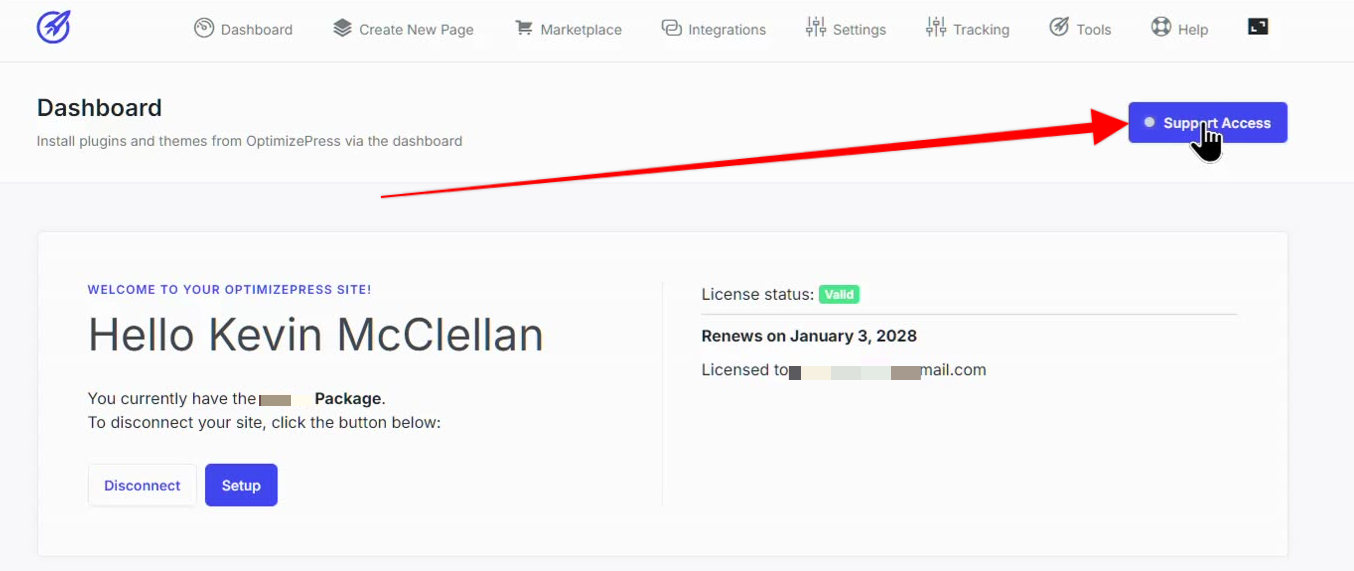
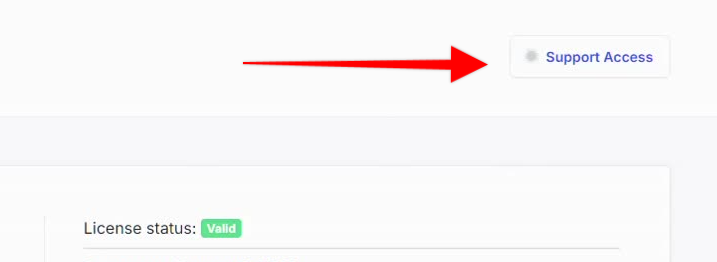
To provide access, simply login to your WordPress Dashboard and click on “OptimizePress” where you will see your OptimizePress information. On that screen, simply click on the “Support Access” button.
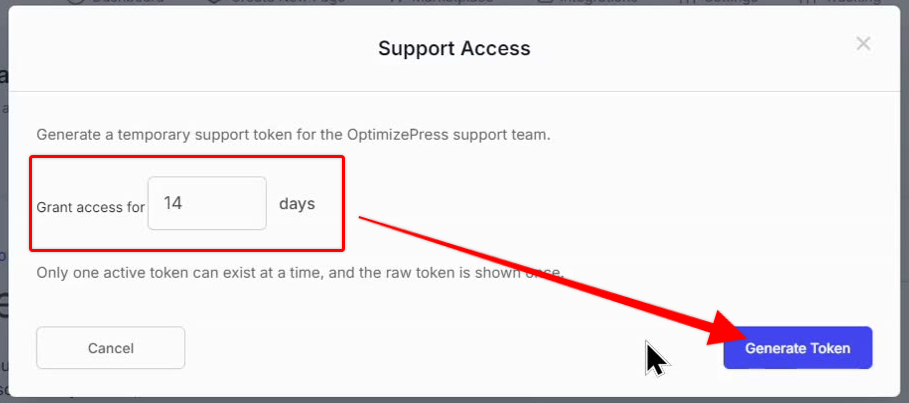
On the next screen, choose the number of days (we suggest leaving at default). Then click “Generate Token”
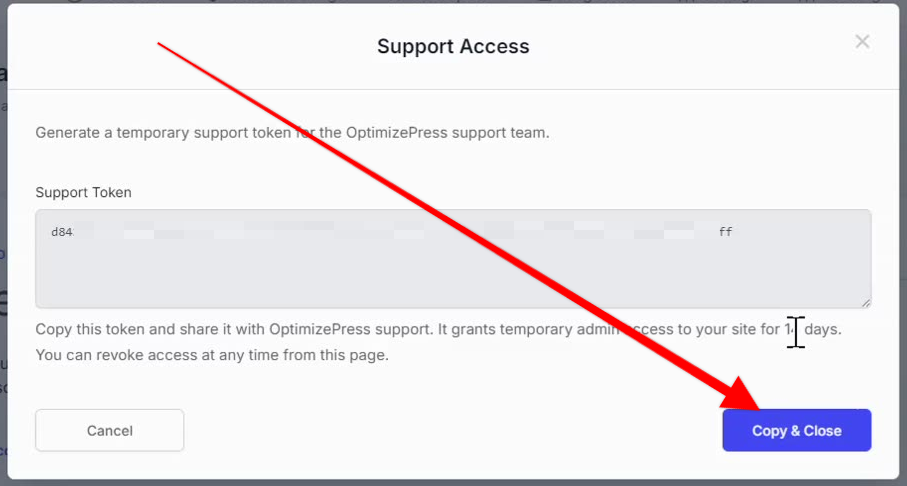
On the next screen, please copy the security token. Click the blue “Copy & Close” button as that will put the token on your clipboard that you can send to us.
Once you send us the Support Access token, our team will be able to access your site only through our support system. Once you revoke access, it will no longer allow our team access to your site even if they try to use the token.
To revoke access, go back to the OptimizePress Dashboard screen, and hover your mouse pointer over the “Support Access” button. From there you can revoke the access.
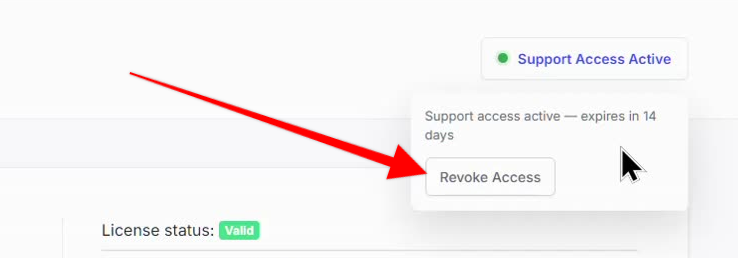
As soon as you do that, the access is revoked and the “Support Access Active” button with the green dot (indicating we have access) will turn into “Support Access” with gray dot indicating our support team do not have any further access to your site.
While it may be better for us to have the direct logins from Method 1 for more advanced troubleshooting, this would be a good method to use if you need help on less technical things such as allowing our team to check pages to find settings to solve issues with the page elements as we can not always reproduce those issues - so seeing it and looking at settings will help us show you how to solve it.
If you have any questions about either of these access methods, please let our team know and they’ll be happy to guide you further on how to provide access to your site.

