

In order to have the fastest loading landing pages, sales pages, and other pages, we disable most 3rd party plugin/theme scripts when using OptimizePress Templates.
If you are using a 3rd party plugin that adds content to your pages, then you may need to enable that plugin’s scripts and styles on the frontend of your site in order for them to display properly on pages which use the OptimizePress3 Blank Template.
To enable the styles and scripts, login to your WordPress site and navigate to “OptimizePress> Settings > Scripts and Styles” and check the boxes next to any plugins or theme you need to run on those pages.
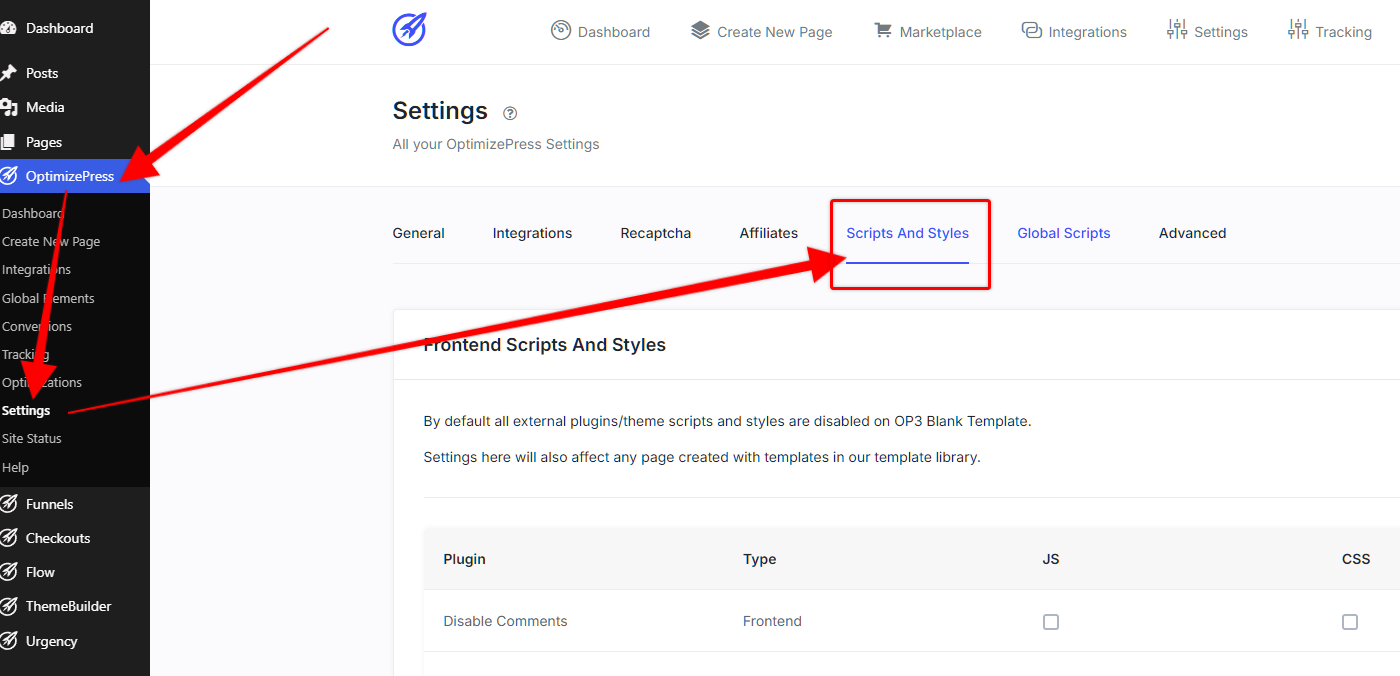
You only need to check boxes for plugins that actually are adding scripts/styles to the front end pages of your site.
You do not need to check boxes for any of the following kind of plugins:
Security plugins
SEO plugins
Plugins that only add features to the admin area of your site
Other plugins to enhance security (such as login brute force protection, etc..)
Plugins that do not add any content to your pages
You should only check boxes in cases where you need to use a plugin on a page using the blank template where you may have noticed display issues. Enabling the scripts (JS) and Styles (CSS) for that plugin should fix the issue after purging your browser and site cache.
If you have any questions on using this feature please let us know by submitting a support ticket to our team and we’ll be happy to help.