---
title: "Custom HTML element"
description: "🎥 Custom HTML element"
url: https://docs.optimizepress.com/en/articles/451-custom-html-element
collection: "General Elements"
updated: 2026-09-29
language: en
---
# Custom HTML element
🎥 Custom HTML element
This article will show you how to use the Custom HTML element within the OptimizePress Builder.
You can use the Custom HTML element to add **Custom HTML** or use **shortcode** to your OptimizePress 3 created pages.
1) Open your page through OptimizePress 3 Builder and look for the **Custom HTML** element from the (+) elements sidebar area.

2) Drag the Custom HTML element to the side where you would want to insert it.
3) Enter in the field provided your Custom HTML or Shortcode.
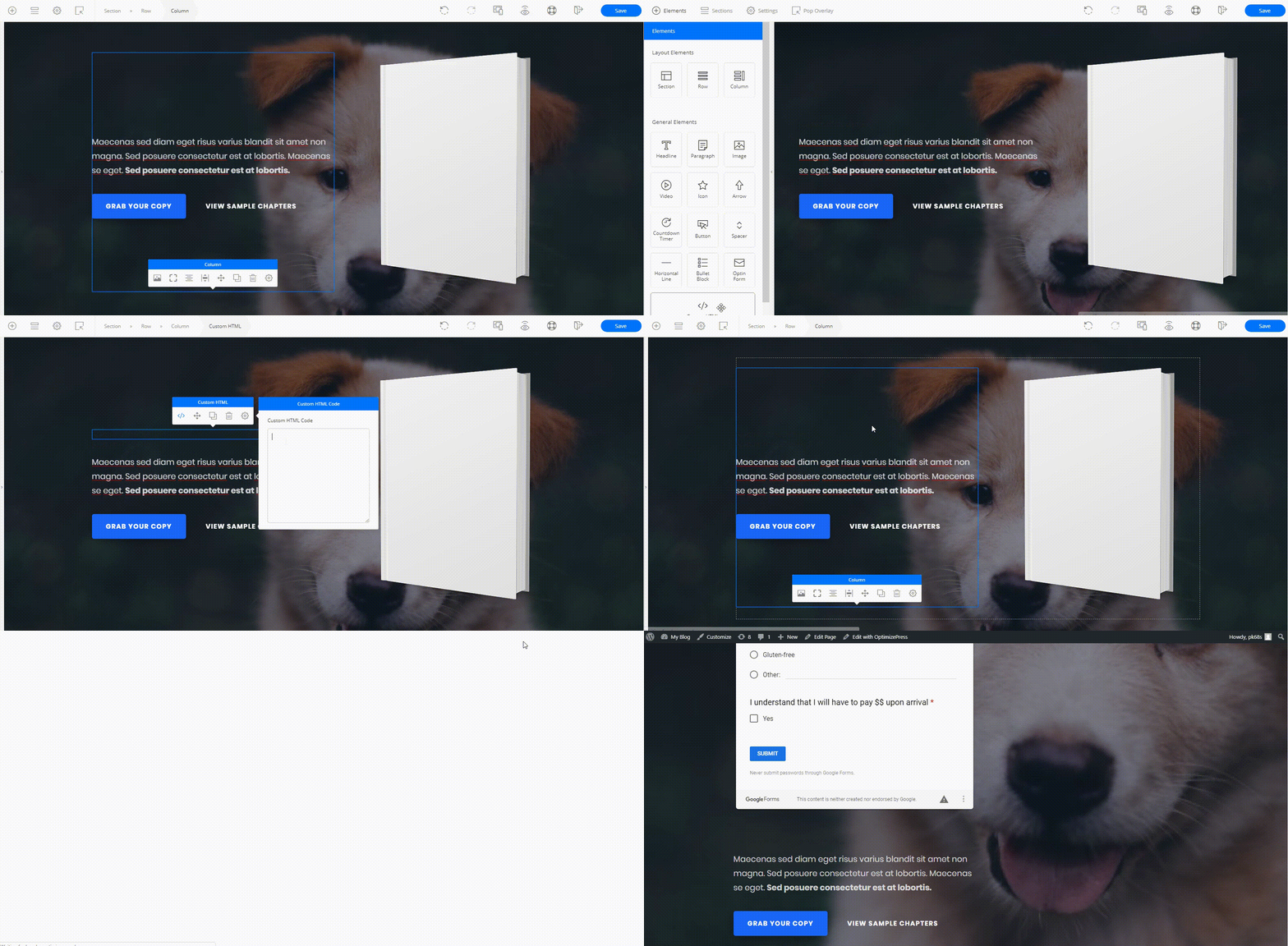
**NOTE:** _Some shortcode may not render in the OptimizePress 3 Builder, but will show if you saved and preview the page._