Our Brevo (formerly Sendinblue) integration allows you to pass subscribers from your OptimizePress opt-in forms to your Sendinblue account.
Follow these steps to complete your integration
1. Go to the Brevo App and login to your account
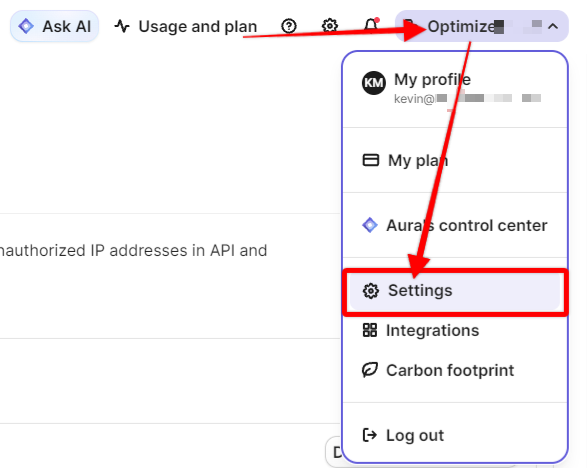
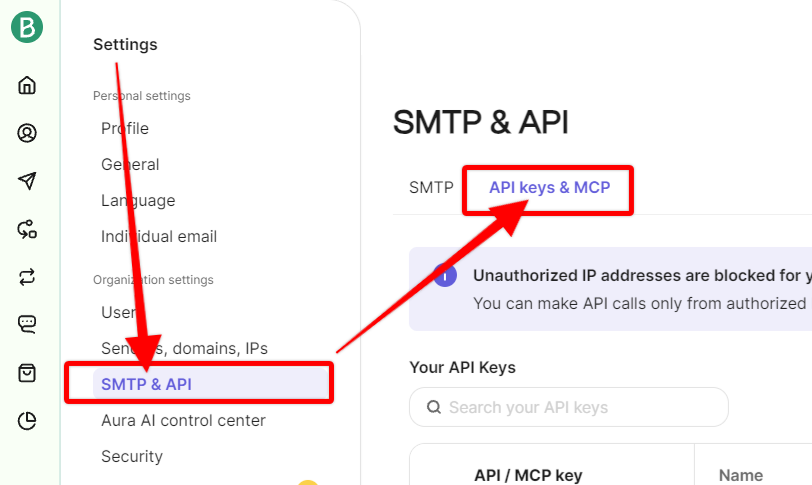
2. Once inside your account, click your company name in the top right to open the dropdown, and select Settings, and then select “SMTP & API” from the left and click on the “API keys & MCP” tab (2nd image below).
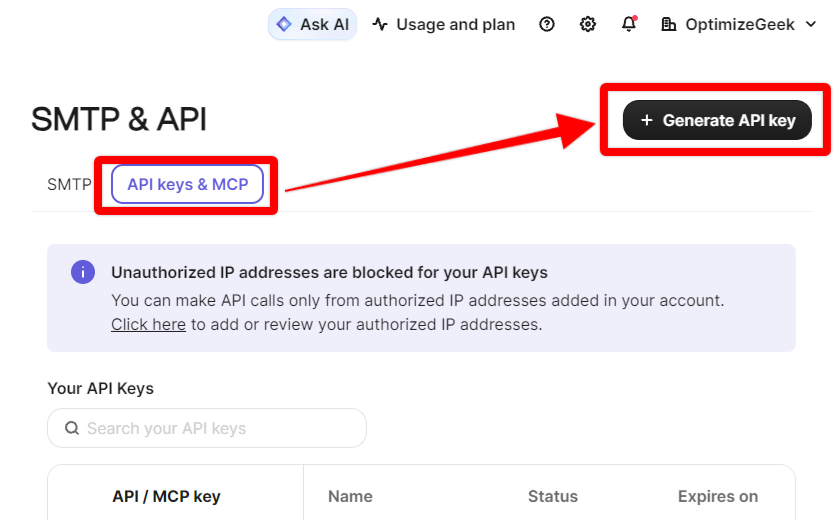
3. On the API screen, you need to generate a new API key. Click the blue "Create A New API Key" button
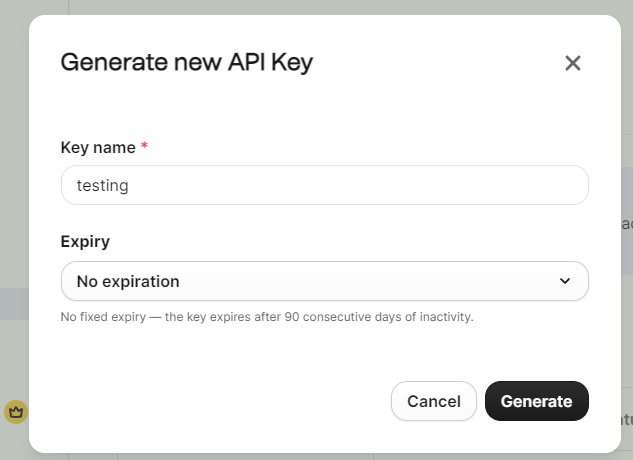
4. You need to give your new API key a name. You can call this whatever you want. If you have multiple sites you might wish to create a different API key for each site, so you might use your site name - but it does not matter. In my example I called it "myAPIkey"
Once you have entered your API key name, and selected an expiry (recommend “no expiration”) click "Generate"
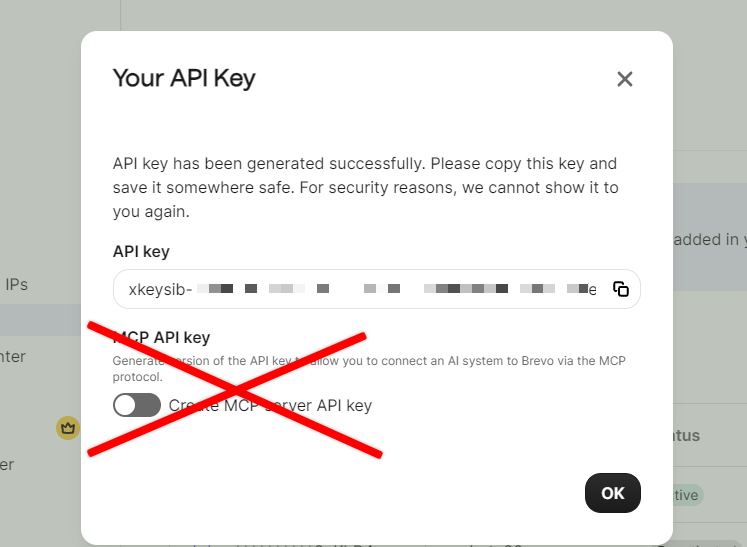
5. Once you click “Generate” you’ll see another screen where you can copy the API key. Please DO NOT enable the MCP API Key as this may not work with the OptimizePress Integration.
Be sure to save your API key somewhere safe as you’ll not be able to see it again.
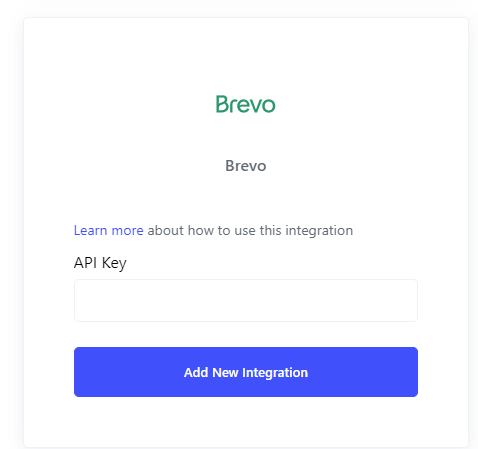
6. Go back to your OptimizePress site, go to the OptimizePress Dashboard > Integrations screen and find click "Add new integration" and find the Brevo field. Add your API key in the Brevo API Key field:
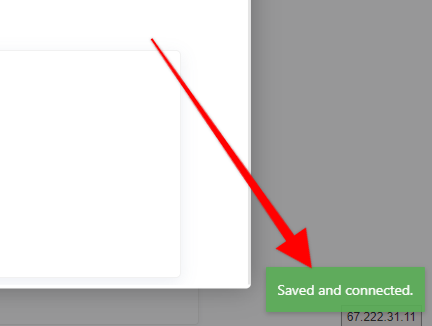
7. Once connected, you should see a green alert in the bottom right
8. To use your integration with Brevo, open an opt-in form in the OptimizePress Builder and select Sendinblue from the integrations list when connecting your opt-in form
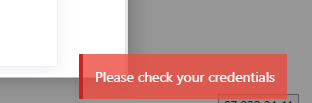
If your API key does not work and you get a red error similar to this one, then you might need to add your website’s IP address as an authorized IP in Brevo’s Security settings.
A tell tale sign you need to do this is on the SMTP & API settings screen if you see this message:
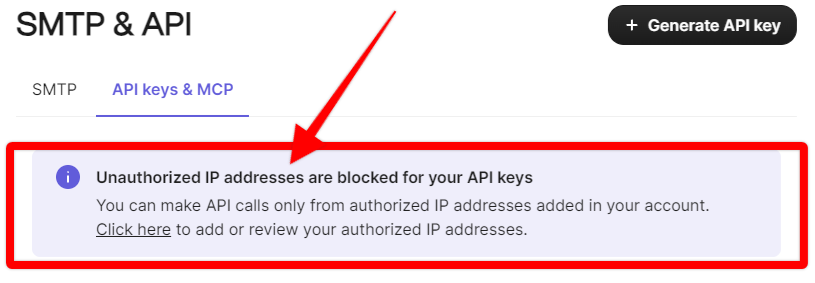
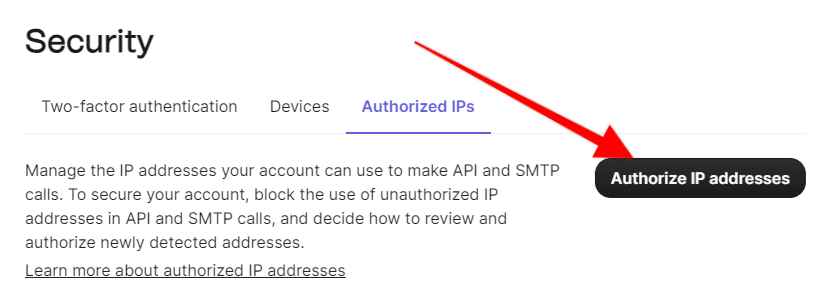
If you see that message then click the “Click here” link which will take you to “Settings > Security > Authorized IPs” where you can add your site IP which your web host can provide to you. Just click on the “Authorize IP addresses” button to add your site’s IP address. Once you do that, please re-try connecting the integration and it should work.